




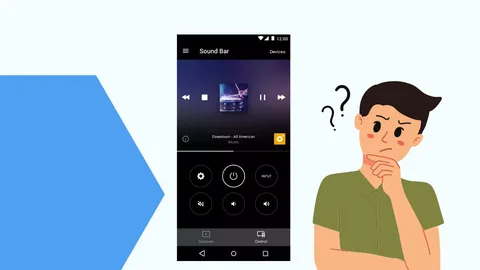
Vizio SmartCast TVs offer a blend of affordability, performance, and smart features, making them a popular choice for many users. However, to truly maximize your experience, you need to explore advanced settings, hidden features, and optimization techniques. This guide provides 15 advanced tips to help you get the most out of your Vizio SmartCast TV.
- Enable QuickStart Mode for Faster Boot-Up
Vizio TVs typically boot up quickly, but QuickStart Mode makes it even faster by keeping the TV in a low-power state instead of fully turning off.
How to enable:
- Go to Menu > Admin & Privacy > QuickStart Mode
- Toggle it On
Note: This may slightly increase power consumption in standby mode.
- Disable Eco Mode for Better Brightness & Performance
Eco Mode adjusts brightness and power settings to save energy, but it can reduce picture quality.
How to disable:
- Go to Menu > Picture > Eco Mode
- Set Eco Mode to Off
For better control, manually adjust Backlight, Brightness, and Contrast instead.
You May Also Like- Vizio : Start Streaming Today with This Simple Login Guide Visit : Vizio.com/setup
- Use Expert Picture Settings for Best Image Quality
Vizio TVs offer multiple presets (Standard, Calibrated, Vivid), but Calibrated Dark or Bright (depending on your room lighting) provides the most accurate colors.
For advanced users:
- Go to Menu > Picture > Advanced Picture Settings
- Adjust:
- Color Temperature (Warm for movies, Normal for TV)
- Gamma (2.2 for dark rooms, 2.4 for very dark)
- Sharpness (Keep between 0-20 to avoid artificial edges)
For HDR content, ensure Active Full Array (local dimming) is set to Medium or High for deeper blacks.
- Enable Game Low Latency Mode for Smoother Gaming
If you’re a gamer, Game Mode reduces input lag for a more responsive experience.
How to enable:
- Go to Menu > Picture > Game Mode (or press Menu while gaming)
- Set to On
For PC gamers, enable HDMI 2.1 features (if supported) and set Variable Refresh Rate (VRR) in the input settings.
- Use the SmartCast Mobile App for Better Control
The Vizio SmartCast Mobile App (iOS/Android) offers better navigation than the remote.
Features include:
- Voice search (via Google Assistant or Siri)
- Keyboard input for typing
- Screen mirroring (for Android devices)
- Remote access when the physical remote is missing
- Cast Directly from Your Phone Without Opening Apps
SmartCast supports Google Cast (Chromecast built-in), allowing direct streaming from apps like YouTube, Netflix, and Spotify.
How to cast:
- Open a supported app (e.g., YouTube)
- Tap the Cast icon (top-right corner)
- Select your Vizio TV
Tip: Use Google Home app to group speakers for multi-room audio.
- Organize Inputs & Rename HDMI Ports
If you have multiple devices (gaming console, soundbar, streaming box), rename HDMI ports for easier access.
How to rename:
- Go to Menu > Inputs
- Select an HDMI port
- Choose Edit Name (e.g., “PS5,” “Apple TV”)
Bonus: Disable unused inputs to reduce clutter.
- Adjust Advanced Audio Settings for Better Sound
Vizio TVs have basic audio presets, but tweaking these settings improves clarity.
Recommended settings:
- EQ Mode: Movie or Music (avoid “Flat”)
- Surround Sound: Virtual X (if no external speakers)
- Volume Leveling: On (prevents loud commercials)
For external sound systems, set Digital Audio Out to Bitstream (for Dolby Digital) or PCM (for stereo).
You May Also Like- C4 Tv : Start Streaming Today with This Simple Login Guide Visit : C4.tv/code
- Use Bluetooth Headphones for Private Listening
Most Vizio SmartCast TVs support Bluetooth audio devices.
How to pair:
- Put headphones in pairing mode
- Go to Menu > Bluetooth & Devices > Add Device
- Select your headphones
Note: Some models require a Bluetooth transmitter if built-in Bluetooth is unavailable.
- Enable Developer Mode for Advanced Users (Optional)
If you want to sideload apps or debug, Developer Mode unlocks hidden options.
How to enable (if available):
- Go to Menu > System > About
- Click OK on the remote 5 times
- Developer options may appear
Warning: This can void warranty—use at your own risk.
- Schedule Automatic Sleep Timer
If you fall asleep watching TV, set a Sleep Timer to turn it off automatically.
How to set:
- Press the Menu button
- Go to System > Sleep Timer
- Choose 30, 60, 90, or 120 minutes
- Clear Cache & Reboot for Performance Issues
If apps freeze or the TV lags, clearing cache helps.
How to clear cache:
- Go to Menu > System > Reset & Admin
- Select Soft Power Cycle (reboots the TV)
For persistent issues, perform a Factory Reset (backup settings first).
- Use a VPN for Geo-Restricted Content
If you want to access international streaming apps, install a VPN on your router or use a VPN-enabled streaming device (Fire Stick, Roku).
Note: SmartCast doesn’t natively support VPN apps.
- Disable ACR (Automatic Content Recognition) for Privacy
Vizio TVs collect viewing data for ads. Disable ACR to limit tracking.
How to disable:
- Go to Menu > Admin & Privacy > Smart Interactivity
- Set to Off
Also, disable Viewing Data in the privacy settings.
- Update Firmware Manually for Latest Features
Vizio occasionally releases firmware updates with new features and bug fixes.
How to check for updates:
- Go to Menu > System > Check for Updates
If updates fail, download the latest firmware from Vizio’s website and install via USB.
You May Also Like- Peacock : Start Streaming Today with This Simple Login Guide Visit : Peacocktv.com/tv
Final Thoughts
By using these advanced tips, you can enhance your Vizio SmartCast TV’s performance, picture quality, and usability. Whether you’re a gamer, movie enthusiast, or casual viewer, optimizing these settings ensures the best experience.
